Posts

Showing posts with the label macOS

Using an iPad as a second screen

Image
Not sure why it took me this long to learn how to do this (it took like 3 clicks). The Displays control panel in system settings

Keychron strikes again; macOS Bluetooth codec frustration; Blink camera battery life; and more!

Image
Qualcomm QCC5125 Package I got the BLT-2 (which apparently uses a Qualcomm QCC3034 chipset) in the mail today, and hooked it up. The manual I found online says it can work between two phones, but the manual for the device I got says it will remember up to 8 devices. Since I want it to work with both whatever laptop I might be cranking on, or at other times my phone, that’s perfect. So I set up my phone and my work MacBook Pro M1 Pro 14". A quick look at Console.app and it appears it’s still using the SBC codec - WTF? Digging into that. (Seems to be a common complaint, and the how to fix guides are all outdated .)  https://gist.github.com/dvf/3771e58085568559c429d05ccc339219?permalink_comment_id=4078721 Update: My Macs connect to many devices using AAC, including: A Loxjie A40 ( log ) (Qualcomm QCC5125) A FiiO BTR5-2021 ( log ) (Qualcomm CSR8675) EarStudio ES100 ( log ) (Qualcomm CSR8675) I’ve ordered a Blafili B3 (which apparently uses the QCC5125), fingers crossed. Blafili sup...

macOS Sonoma Network Priority, suppress "Allow accessory to connect?" prompt

Image
Two things came up using my Thunderbolt 2 dock with my MacBook Air M2 running macOS 14 Sonoma. The first, I noticed it was using my spotty ‡ WiFi connection instead of the faster, reliable wired interface in the dock. Today I learned you can Set Service Order and configure the order in which macOS tries network interfaces (VPN connections are always at the top of the list and tried first, apparently): Network Systems Settings page with Set Service Order... selected Huzzah. Next, every time I connected the Thunderbolt hub, I was getting a pop-up I had to clear, which was annoying: Pop-up Under Privacy & Security, scroll down to Security and find the "Allow accessories to connect" setting, and tweak to taste: Accessory connection security setting Running smoothly now.

Resetting the printing system to cure macOS "Looking for printer"

Image
Canon MF216n I’ve fortunately never needed to reset my printing system before, but when my macOS Monterey machine suddenly couldn’t send print jobs to the Canon MF216n sitting next to it, both connected to the same switch via Ethernet, I discovered this trick. Even though the Mac could connect to the printer just fine (I could browse to its web interface, the control panel successfully read the toner level, etc), and everything should have worked, I tried to send a simple PDF over the wife and got this, endlessly: Endless “Looking for printer” message in macOS   Frustrating. Following these simple steps ‡ reset the printing system and let me get back to work. (I did have to re-add all of my printers, but since they’re all Bonjour-enabled, that was a minor inconvenience.)

Getting Zoom (etc) microphone permissions on an OCLP patched Mac

Image
This took a couple of minutes to figure out, until I realized it probably had something to do with the fact that I have SIP disabled to run Monterey on my 2012 Mac mini. I would open Zoom and the app would pop up the usual window asking to grant it permission to access the microphone (or camera). Clicking through to open System Preferences would reveal a Security & Privacy pane with Microphone selected, but no apps listed to grant permission to, just: “Apps that have requested access to your microphone will appear here.” I tried the incantations I found elsewhere ( tccutil reset Microphone , etc), but nothing got it going. Until I found tccplus . I downloaded this release from Github:  https://codeload.github.com/jslegendre/tccplus/zip/refs/heads/master  and the wrapper hotfix discussed here  ( direct URL ) and ran  tccplus Wrapper.app  and let it download tccplus when prompted.  Then it’s simply a matter of selecting which application you want to grant...

Greyed out folders in macOS Finder

It happens. You’re in the middle of copying a terabyte or so from a laptop to a file server, something happens, the transfer gets interrupted, and now you have a smattering of greyed out folders with some (but not all) the content they should have. Sitting there. Mocking you. rsync can finish the file transfer easily enough, but how do you get them re-consecrated as valid folders? SetFile -d 11/09/2016 /path/to/grey_folder And if that balks with an error message along the lines of invalid active developer path (/Library/Developer/CommandLineTools), missing xcrun at: /Library/Developer/CommandLineTools/usr/bin/xcrun? Well, then: xcode-select --install  

Issues with macOS Ventura

Image
I found a good deal on an almost maxed out Intel MacBook Air 2020 (Core i7-1060NG7 @ 1.20GHz, 16GB RAM, 512GB SSD) and set it up today. I figured, since it’s fully supported, I’d start this one off on Ventura (macOS 13) from day one. It came wiped to a fresh install of Monterey (macOS 12). First I tried to do the ⌘⌥R restore method to install the latest operating system, but every time after about a half hour or so I’d get an error -2005F error and could go no further. (A little digging suggests that that error is WiFi related ? Wireless here isn’t awesome, I see 49 networks sitting in my living room, 21 of then 2.4 GHz, 28 in the 5 GHz band; there are no channels free from interference.) Tried both 2.4 and 5 GHz networks before giving up and completing the setup for Monterey, and then using Software Update to install Ventura. This was a mistake. I had the same issue this user had , where most of the .pkg files I tried to install (e.g., OpenJDK8U-jdk_x64_mac_hotspot_8u345b01.pkg ), ...

Proper Tools; macOS Recovery; macOS Upgrade Path

Image
The circa-2011 Crucial M4 SSD in the 2012 Core i5 Mac mini I picked up used (and cheap!) for the office failed. It was running really slowly the night before, the next morning no application would open (the icons would just bounce in the dock, forever), and when I finally lost patience and power-cycled it, I got the dreaded blinking question-mark folder. Oh well. Picked up a Crucial MX500 ; 1TB seems to be the price-capacity sweet spot ($90). (Side note, the 256GB drive I was replacing was $299.99!) Swapping the same drive into the 2012 Mac mini server was a non-event, I could slip the old 500GB spinning rust mechanism right out. But the base model desktop was another story . Turns out I needed a simple, inexpensive, Mac Mini Logic Board Removal Tool to scoot the motherboard aside just enough for me to get the dead drive out. As long as I was ordering tools, I finally broke down and got a Wiha set . That, plus a set of cheap Chinese spudgers etc. I picked up a while ago ( Kaisi Profes...

Installing Big Sur on a mid-2010 Mac Pro (MacPro5,1)

Image
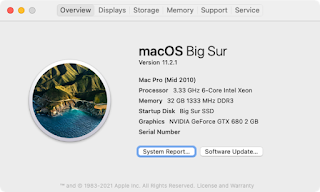
Working. I successfully installed Big Sur on a “mid-2010” “classic” Mac Pro ( MacPro5,1 ). This required upgrading the video card (I went with a relatively inexpensive GTX680 I flashed with an Apple ROM) , but was otherwise pretty painless and a lot less involved than I’d been reading - which has me wondering if I’ve missed something? Obtaining the Installer Used a great script to obtain the Big Sur installation app directly from Apple, even though the computer I was using (Late 2013 iMac) isn’t supported: $ curl -o ~/installinstallmacos.py https://raw.githubusercontent.com/munki/macadmin-scripts/main/installinstallmacos.py $ chmod +x ~/ installinstallmacos.py $ sudo ./installinstallmacos.py  ...  #      ProductID    Version    Build   Post Date  Title  1      071-14766     11.2.3    20D91  2021-03-08  macOS Big Sur  2      001-68446    10.15.7  ...